
Evidence reviewed and write-up prepared: 10 October 2026.
Lab achievement: View my Countdown achievement.
Tools: Autopsy, the FTK Imager acquisition report, DB Browser for SQLite, Thumbcache Viewer, and a ROT13 decoder.
Investigation summary
I followed a Windows disk image from an acquisition report into Signal messages, recent-file records, cached thumbnails, and a Sticky Notes database. Each artifact gave me a reason to change tools or narrow the next search.
Signal did not appear in the installed-programs view, so I checked Prefetch. That led to the configuration file and the key needed to read the local message database. The conversation then pointed to an email attachment that was no longer available in the email view. Recent-document records and the thumbnail cache supplied the next leads.
The final two questions needed the lab’s hints. I used them to recover the planned time from a cached image and decode the location using a Sticky Note and Tor browsing history. I had to follow those leads across several artifacts to answer the scenario.
Original lab scenario

Scenario reproduced verbatim from the original lab notes.
NYC Police received information that a gang of attackers has entered the city and are planning to detonate an explosive device. Law enforcement have begun investigating all leads to determine whether this is true or a hoax.
Persons of interest were taken into custody, and one additional suspect named ‘Zerry’ was detained while officers raided his house. During the search they found one laptop, collected the digital evidence, and sent it to NYC digital forensics division.
Police believe Zerry is directly associated with the gang and are analyzing his device to uncover any information about the potential attack.
Disclaimer: The story, all names, characters, and incidents portrayed in this challenge are fictitious and any relevance to real-world events is completely coincidental.
Official BTLO Replay walkthrough.
Phase 1: Establishing the image and finding Signal
Q1. Reading the acquisition record
Q1: Verify the Disk Image. Submit SectorCount and MD5 (7 points)
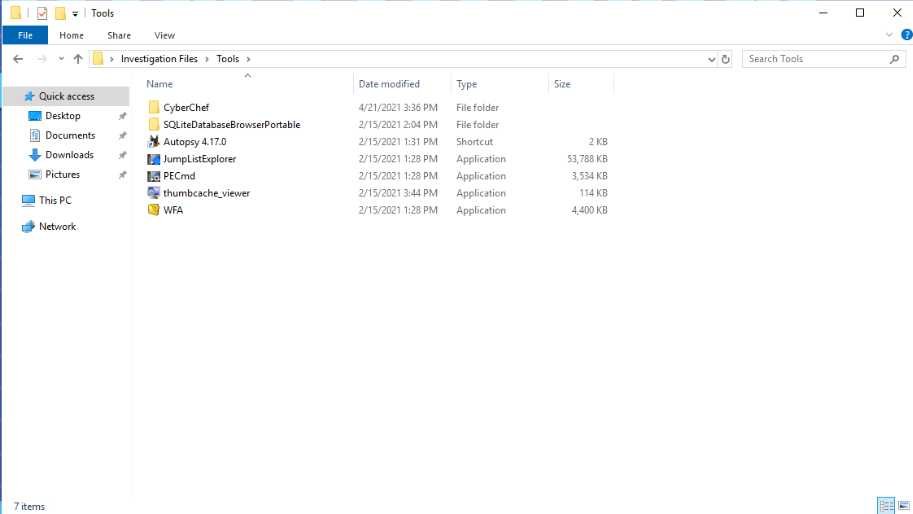
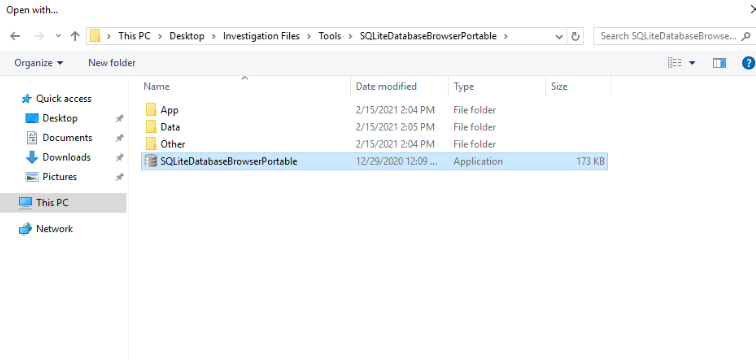
I started by checking the applications available in the lab, then opened the disk-image folder. It included an FTK Imager text report with the sector count and computed MD5 checksum.
Available tools and the disk-image folder
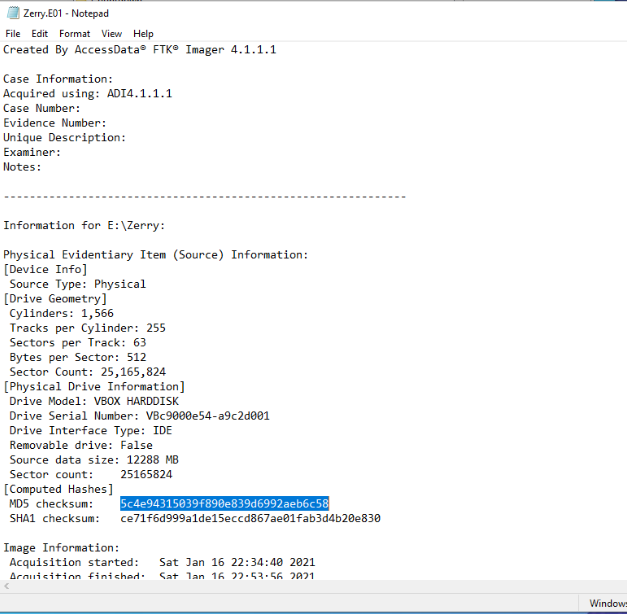
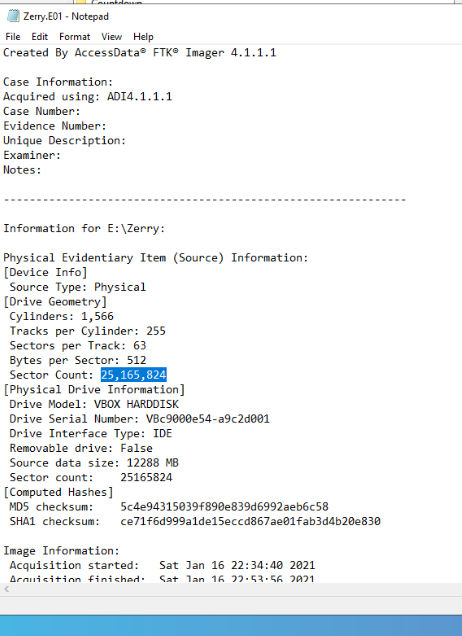
Answer (Q1): 25,165,824, 5c4e94315039f890e839d6992aeb6c58
These are the values in the supplied acquisition report. My notes record reading that report; they do not record a separate hash calculation over the image, so I would not describe this step as an independent integrity verification.
Q2. Finding the messenger’s database key
Q2: What is the decryption key of the online messenger app used by Zerry? (7 points)
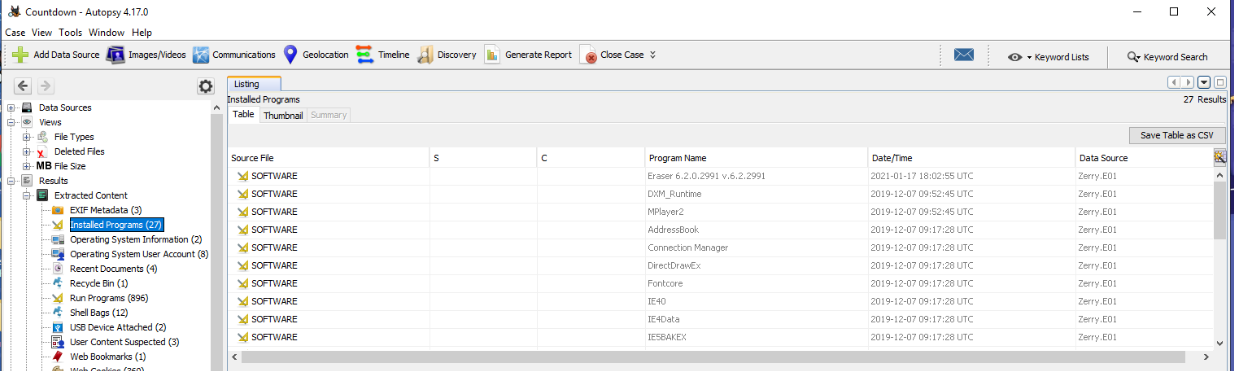
Before looking for a key, I needed to identify the messenger. I opened the supplied Autopsy case and checked the installed-programs artifacts. That view did not give me a messaging application, so I moved to Windows\Prefetch. A Signal entry gave me a better lead. I also encountered Skype later, but it did not resolve the key question.
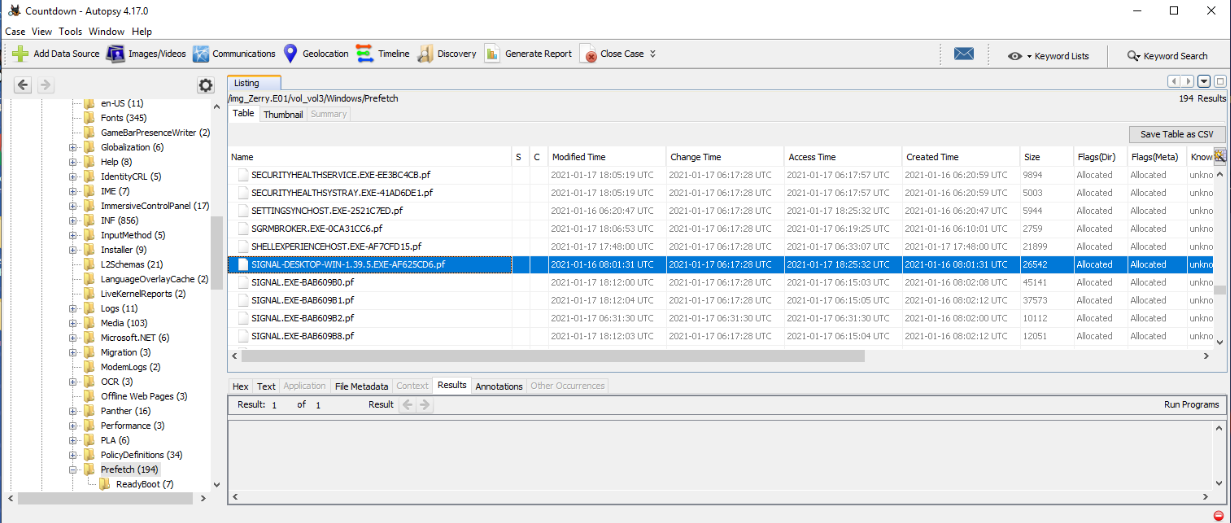
I consulted the historical article linked in my notes as a lead for the configuration path, then checked the image itself:
%AppData%\Signal\config.jsonAutopsy showed the Signal folder in Zerry’s application data. I extracted config.json and opened it in a text editor. In this lab image, its key field held the value I needed. This finding describes the supplied image, rather than making a claim about current Signal versions.
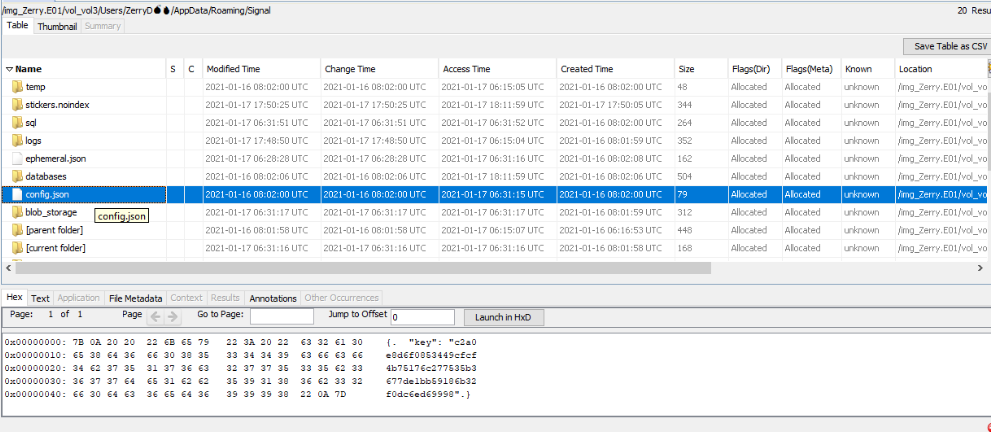
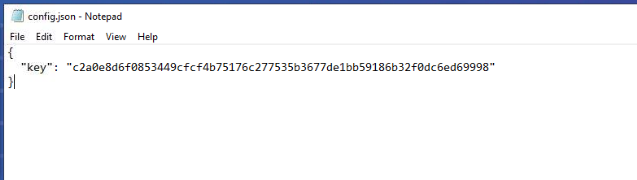
Answer (Q2): c2a0e8d6f0853449cfcf4b75176c277535b3677de1bb59186b32f0dc6ed69998
Phase 2: Opening the database and following the conversation
Q3. Identifying the registered profile
Q3: What is the registered phone number and profile name of Zerry in the messenger application used? (7 points)
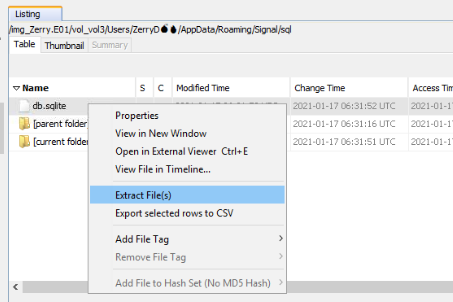
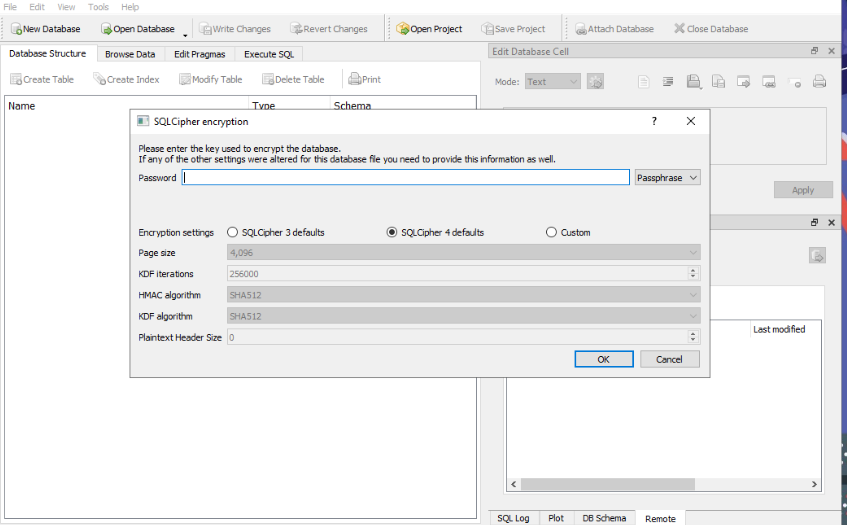
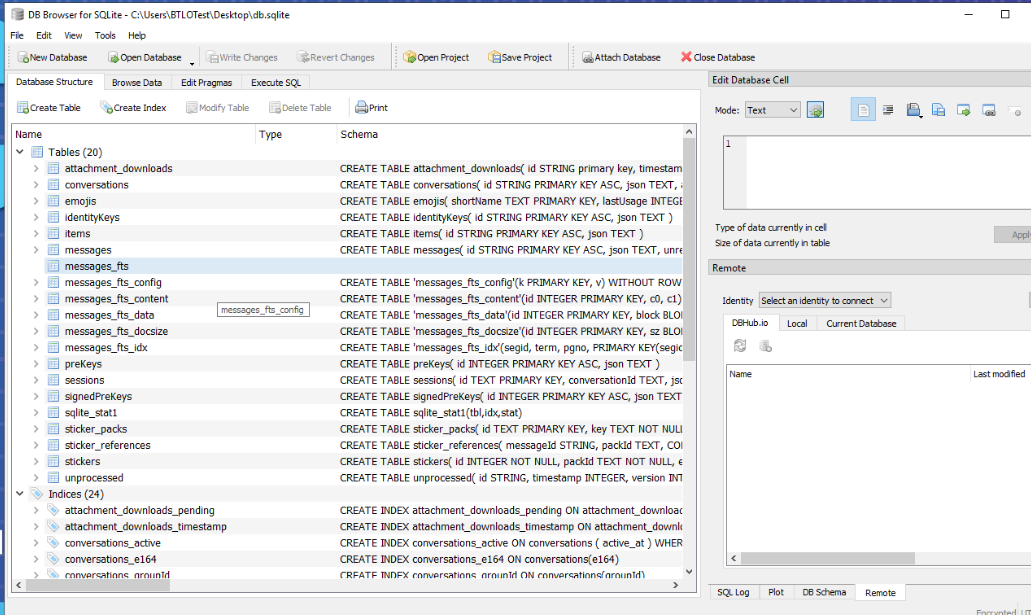
The readable files I checked did not contain the profile details. I extracted Signal’s db.sqlite and opened it in the lab’s database browser. At the encryption prompt, I selected Raw key, prefixed the recovered key with 0x, and entered it. That opened the database for inspection.
Extracting and opening the Signal database
In Browse Data, the conversations table contained the registered number and profile name.
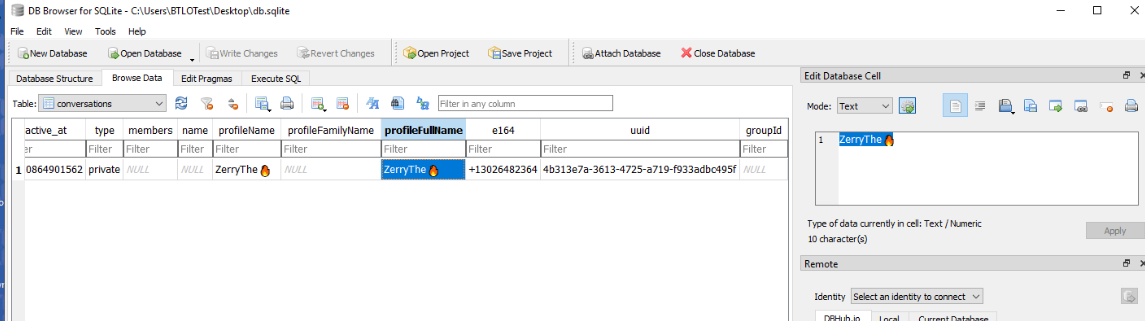
Answer (Q3): +13026482364, ZerryThe🔥
The emoji matters here. It did not copy reliably from the database view, so I checked the profile name and entered the fire emoji explicitly.
Q4. Finding the email address in the chat
Q4: What is the email id found in the chat? (7 points)
I stayed in the same database and switched to the messages table. The conversation contained the email address, followed by messages about receiving and erasing an attachment. That gave me both the answer and a reason to investigate the email and file artifacts next.
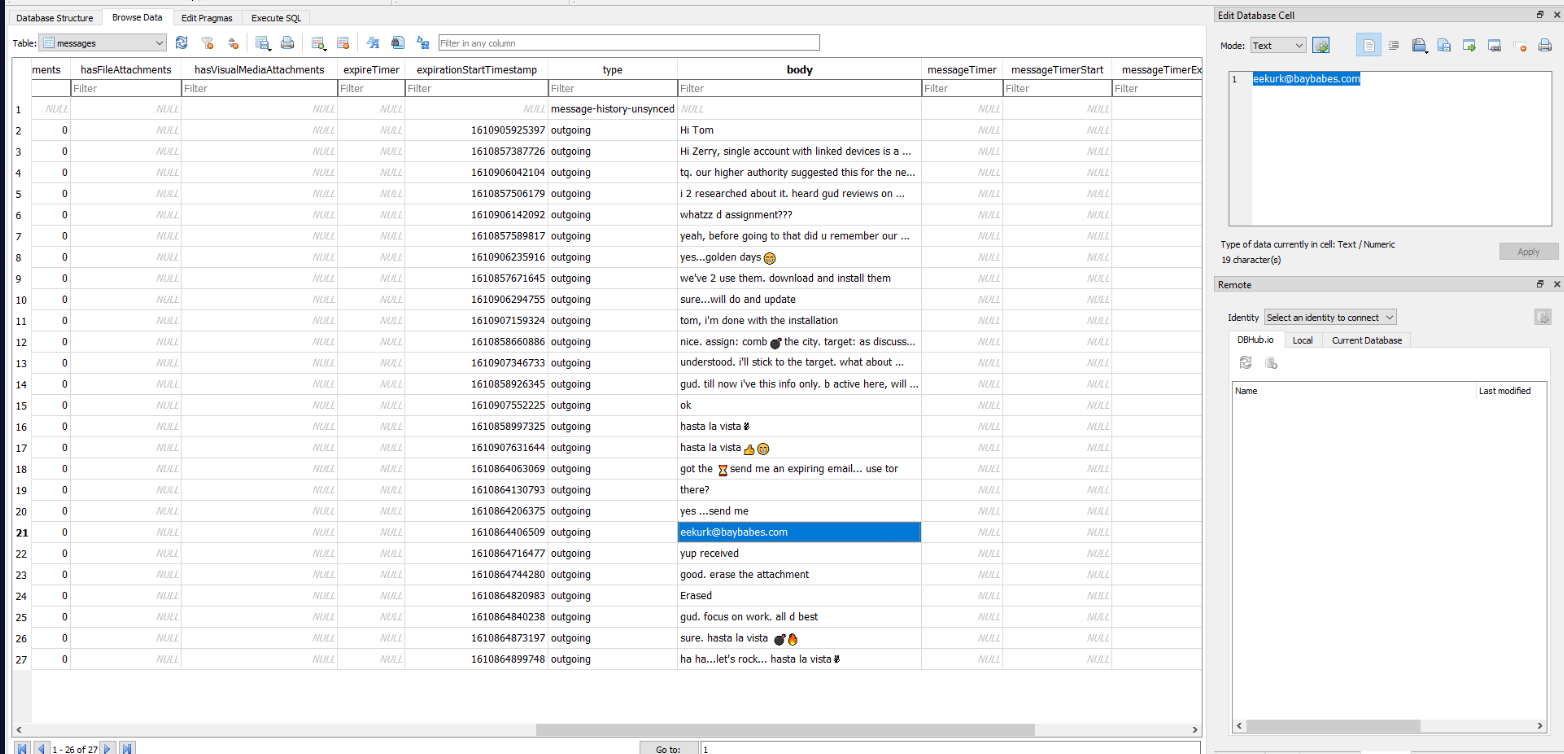
Answer (Q4): eekurk@baybabes.com
Phase 3: Following the missing attachment
Q5. Correlating the filename with recent-file records
Q5: What is the filename(including extension) that is received as an attachment via email? (7 points)
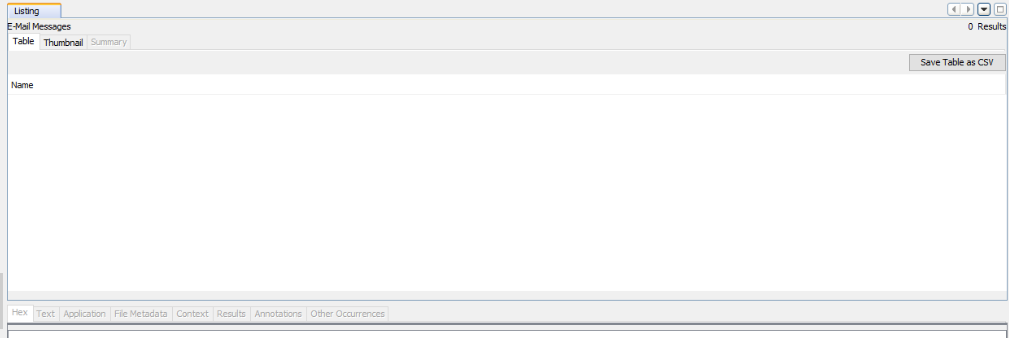
I returned to Autopsy and checked Email Messages, but that view was empty. An empty email view alone would not prove deletion. In this case, the Signal conversation separately discussed erasing the attachment, which made the missing email a useful lead rather than the end of the search.
I checked Recent Documents for file references and compared them with the conversation around the expected delivery. My notes place that chat activity around 17 January 2021 06:20:06.140; the recent-file view shows records at 06:24:39 UTC. I used that proximity and the file reference to identify the candidate, rather than claiming that I had recovered the original email.
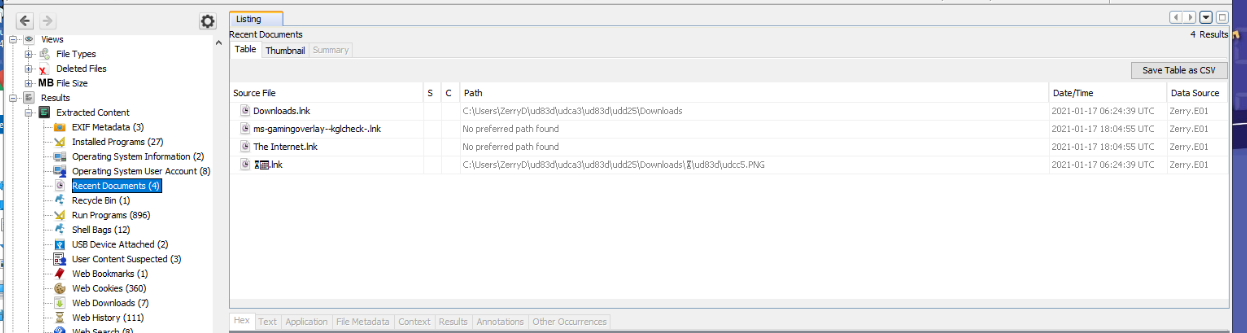

Answer (Q5): ⌛📅.PNG
As with the profile name, I had to enter the emojis explicitly because copying the displayed filename did not preserve them reliably. I also kept the uppercase extension.
Q6. Recovering the planned date and time from a thumbnail
Q6: What is the Date and Time of the planned attack? (7 points)
I used the lab’s hint for this question. It directed me to export thumbcache_256.db from the user’s Explorer data and open it in Thumbcache Viewer:
/Users/Zerry/AppData/Local/Microsoft/Windows/Explorer/thumbcache_256.db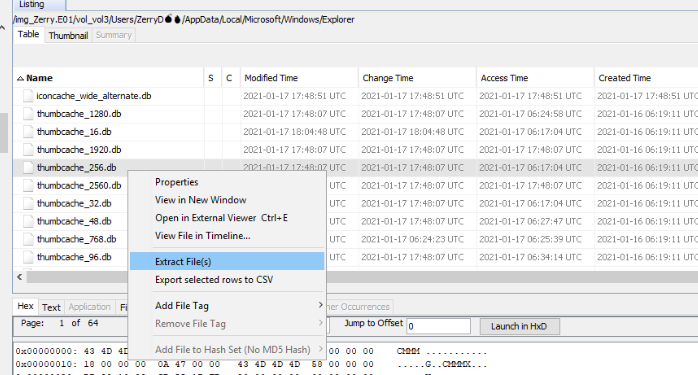
After exporting the database, I browsed its cached images. One image contained the date and used a clock and sun emoji to indicate the time and AM period.
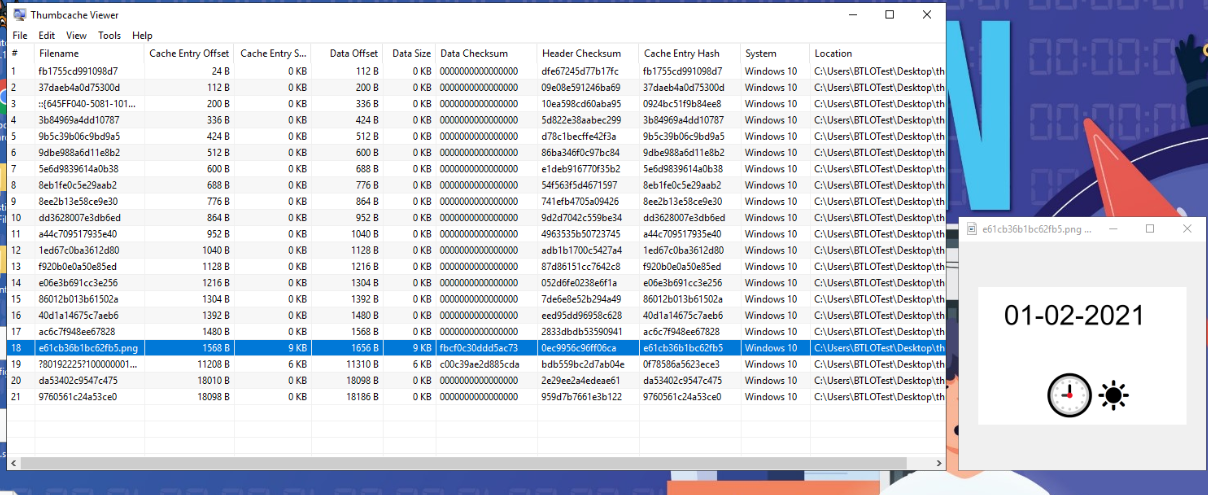
Answer (Q6): 01-02-2021 09:00 AM
I have retained the lab’s date format. The notes do not establish a timezone for the planned attack, so I have not added one. The thumbnail is evidence of cached image content; it is not a recovered email attachment.
Phase 4: Decoding the location
Q7. Connecting a Sticky Note to Tor history
Q7: What is the GPS location of the blast? The format is the same as found in the evidence . [Hint: Encode(XX Degrees,XX Minutes, XX Seconds)] (8 points)
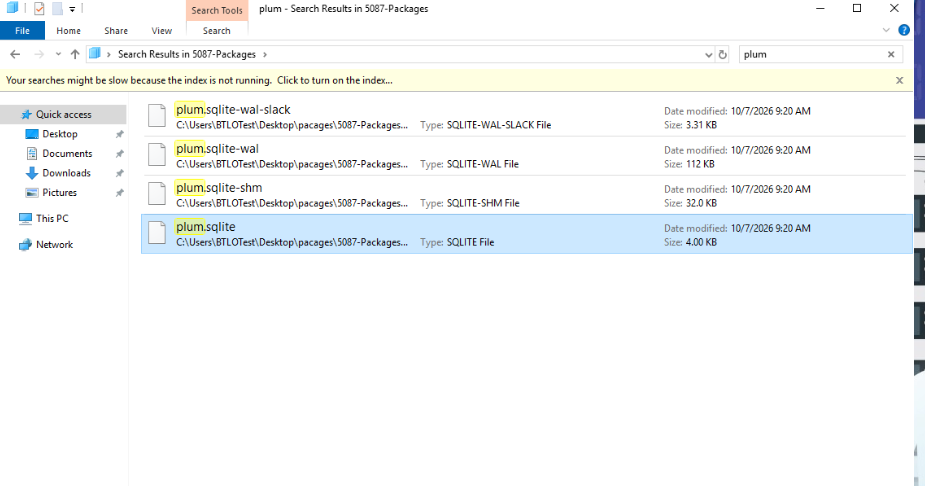
I used the supplied hint here too. It pointed to the Sticky Notes package under the user’s AppData\Local\Packages directory and its LocalState\plum.sqlite database. I exported the package, found the database, and opened it in the SQLite browser.
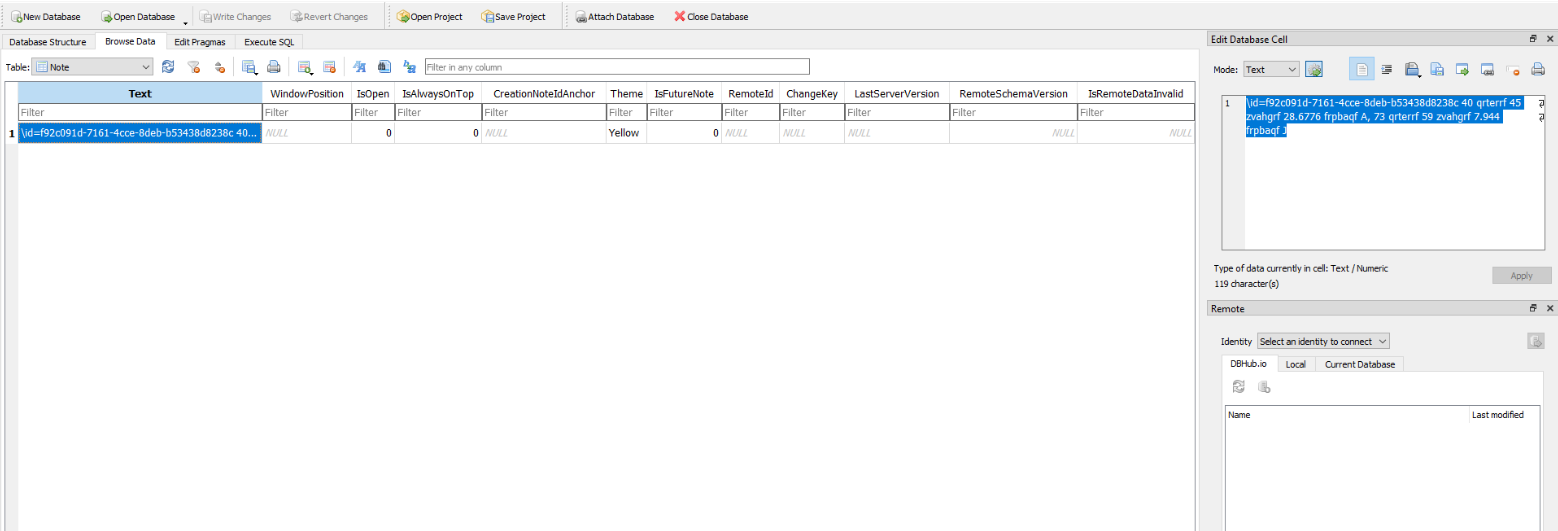
The Note table contained a string with recognizable coordinate numbers but transformed words. I needed to identify the transformation before treating it as a location.
The hint also directed me to Tor’s places.sqlite history. I exported that database through Autopsy and inspected the visited URLs. The entry for https://rot13.com/ supplied a specific decoding lead.

Applying ROT13 to the note restored the coordinate words. ROT13 is an encoding, so this step did not involve finding a cryptographic key. I took the location text from the decoded content and left out the note’s internal identifier.
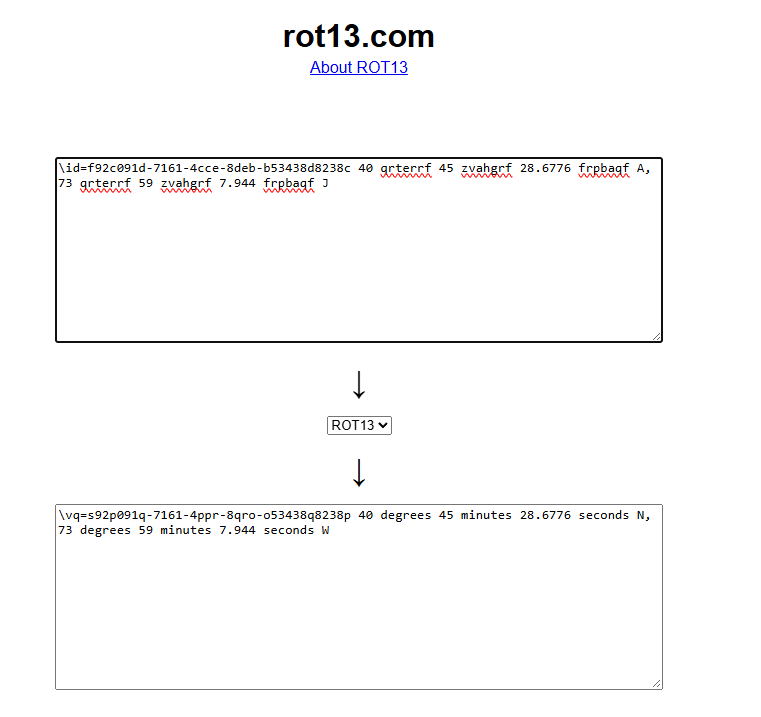
Answer (Q7): 40 degrees 45 minutes 28.6776 seconds N, 73 degrees 59 minutes 7.944 seconds W
What I took from the investigation
I made progress when I stopped expecting one view to contain everything. Installed programs led nowhere, but Prefetch identified Signal. The message database supplied an email lead, while recent-file records and a cache supplied evidence that the email view could not.
I also had to keep the strength of each finding clear. Reading an acquisition report is different from independently hashing an image. A recent-file record is different from a recovered attachment. A hint-assisted recovery is still worth explaining, provided I show where the hint changed my approach.
Skills demonstrated: Windows disk-image triage, artifact correlation, encrypted SQLite database access with a recovered key, thumbnail-cache examination, and tracing encoded content through browser history.
Original working notes: Original Notion notes.